How to import your custom brushes
Your favorite brushes are part of the way you draw. GalionToon reads the most common brush formats, so you can bring your tips and keep your stroke. Each format stores different things, and it helps to know what comes in so you can adjust what is missing.
Step by step
- Open galiontoon.com, go into Galion Photo and choose the Brush (B key).
- Click Library (the gold button with the books) in the brush bar at the top to open the Brush library.
- Click Import brushes… and choose one or more files. You can also drag them onto the window.
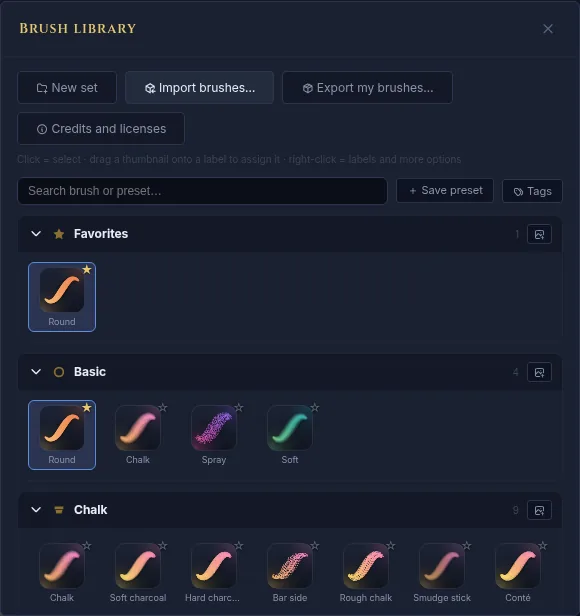
The Brush library: “Import brushes…” accepts every format. - Imported brushes appear in the library under a new label. Click one to use it.
- Adjust the stroke with the sliders in the bar: Size, Opacity, Flow and Hardness. Drag a slider sideways or tap it to type the value. The tip’s Spacing and Angle are in its drop-down: the button with its picture, on the left of the bar. If your hand shakes, use the Stabilizer button: Smooth removes the tremor and String lets you place the pen before painting.
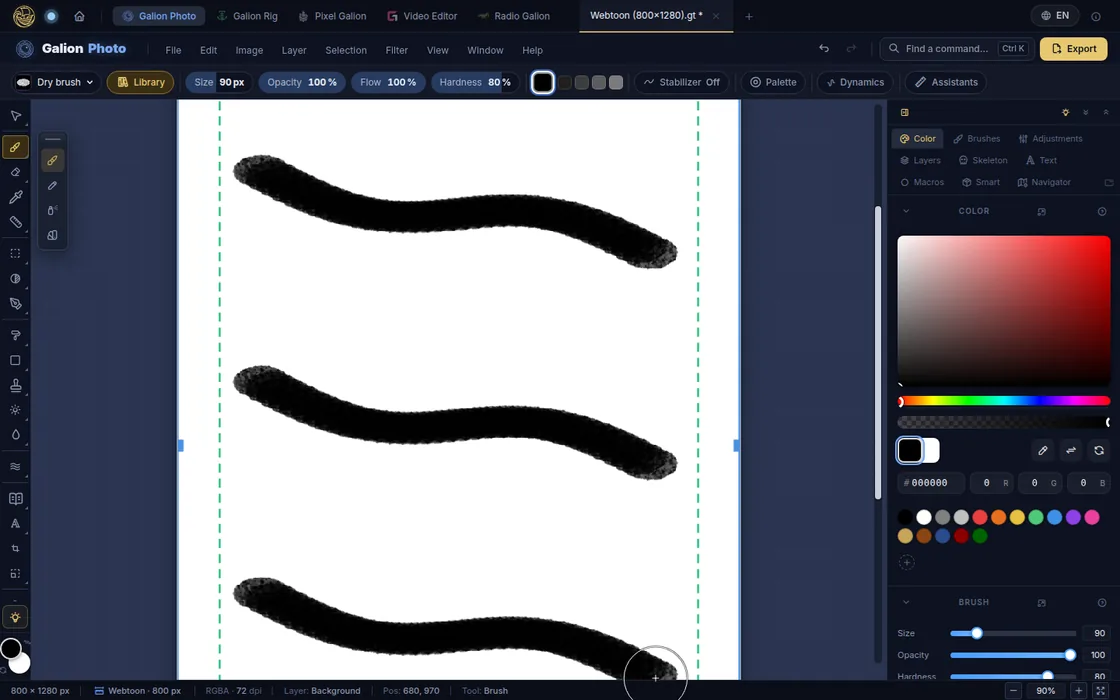
After importing, adjust the stroke in the bar.
What each format brings
Every program stores its brushes in its own way. GalionToon always brings the shape of the tip, which is what shows most; each program’s own dynamics (how it responds to pressure, color mixing, complex textures) do not always have an equivalent.
| File | What comes in |
|---|---|
| .abr | The tips in the file, one per brush. |
| .brushset / .brush | The tip and the grain of each brush. |
| .sut | The name and the first tip of the brush. |
| .kpp / .bundle | One brush per preset, with the thumbnail as the tip. Size and spacing usually need adjusting. |
| .myb | The brush settings (size, opacity, hardness, spacing, stabilizer) on a round tip. |
| .galion_brushset / .zip | A complete GalionToon set, as it was exported. |
| .png, .jpg, .webp | The image as a tip, with Import brush to this label. |
Your own tips
- Draw a black mark on a white or transparent background, export it as PNG and import it with Import brush to this label: black paints, white does not.
- A tip of 200 to 500 px gives good detail without weighing much.
- Drag thumbnails onto a label to organize them; right-click for more options.
Keeping your brushes
- Imported brushes are saved in the browser and are still there next time.
- To keep a copy or take them to another device, click Export my brushes… in the library: you get a .galion_brushset file with your brushes, their presets, their labels and their grains. On the other device, import it with Import brushes….
- Every label with brushes of yours also has its own export button, to save just that one.
- The brushes you use also travel inside the .gtphoto project, so a shared file looks the same on another computer.
Common problems
- The brush paints a square. The tip was an image without transparency. Use a black tip on white or on a transparent background.
- The stroke comes out as dots. The spacing is too high for that tip. Lower it in Spacing, in the tip drop-down (the button with its picture, on the left of the bar).
- Nothing gets imported. The file may be damaged or from a version that is not recognised. Try exporting it again from its program, or import the tip as a PNG image.
- The brush does not respond to pressure. Check that you are using a pressure-sensitive pen and that Use pen pressure is ticked in Dynamics. A mouse has no pressure; set the opacity by hand.
Common questions
Can I import from a phone or a tablet? Yes. “Import brushes…” opens the system file picker, so there is no need to drag anything.
Why does my brush not paint exactly as in its original program? Every program has its own brush engine. GalionToon brings the tip and the settings that have an equivalent; the rest is adjusted in the bar.
Where are the brushes stored? In your device’s browser storage, and inside every .gtphoto project that uses them. If you clear the site data, they are removed from the browser: keep a copy made with “Export my brushes…” (or the original files) to import them again.
How many brushes can I import? As many as fit in the browser storage. If it fills up, GalionToon warns you and the brushes stay for that session only.
More guides
- How to make your first manga page in your browser6 min read
- How to make a vertical webtoon to read on a phone5 min read
- Speech balloons and speed lines for your comic5 min read
- Comic and manga page sizes: B5, A4, comic book and webtoon5 min read
- How to remove the background from a photo in your browser5 min read
- How to open and save a PSD file in your browser4 min read
- How to make your first animated pixel art3 min read
- How to add subtitles to a video in your browser3 min read
- How to edit your first video in your browser4 min read
- How to make a YouTube thumbnail for free in your browser4 min read
- How to crop a photo into a circle for your profile picture4 min read
- How to put text on a photo so it can be read4 min read
- Layer masks: what they are and how to use them4 min read
- How to resize an image for social media without losing quality4 min read
- How to make an Instagram post step by step4 min read
- How to create a sprite sheet for a video game4 min read
- Free fonts for commercial designs: how to choose them5 min read
- How to animate a character with bones in Galion Rig4 min read
- How to convert a drawing or a logo into a vector (SVG)4 min read