How to make a YouTube thumbnail for free in your browser
The thumbnail is the first thing people see before deciding whether to click on your video, and they almost always see it small, on a phone. In GalionToon you can make it in your browser with the exact-size template, cut out the person or object, add text that reads from a distance and export it ready for YouTube Studio.
What you need
- A browser on a computer. It also works on a phone, but a mouse makes placing text and layers easier.
- A photo you have the rights to: your face, a frame from your video or a product shot.
- An idea of three to five words. Long text does not read in a thumbnail.
What YouTube asks for
- A size of 1280 × 720 pixels (16:9), with a minimum width of 640.
- A file of 2 MB at most, in JPG, PNG, GIF or BMP.
- A verified channel: YouTube only lets channels that have verified their phone number upload custom thumbnails.
- Free space at the bottom right: YouTube places the video length there.
Step by step
- Open galiontoon.com and choose Galion Photo.
- Go to File → New…, open the Social media tab, choose YouTube thumbnail (1280 × 720) and click Create.
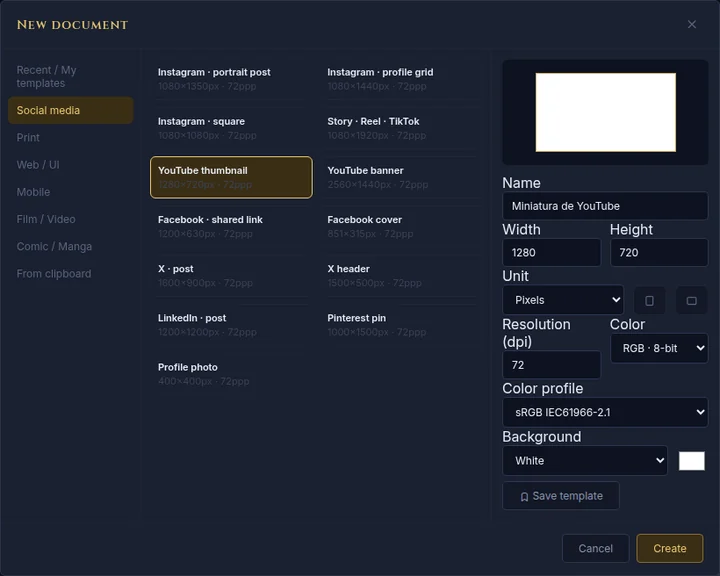
File → New…: the YouTube thumbnail template already has the exact size. - Give it a strong colour background with the Paint bucket or the Gradient (G key). A flat, saturated background makes the subject stand out.
- Add your photo with File → Place image as layer…: it comes in as a new layer, with handles to adjust its size. Make it big; in a thumbnail the subject usually takes up a third or more.
- Separate the subject from its background with Image → Remove background…. The guide How to remove the background from a photo explains which method to choose and how to touch up the edge.
- Choose the Text tool (T key), click on the canvas and type your phrase. Use a heavy font and a large size: in the font list, “More free fonts (catalog)…” has Bebas Neue, Anton or Bangers, made for headlines.
- Give the text an edge: in the Text panel, under Appearance, choose the Outer outline color and raise the Outline thickness. To lift it even more from the background, add a shadow in Layer → Layer styles → Drop shadow….
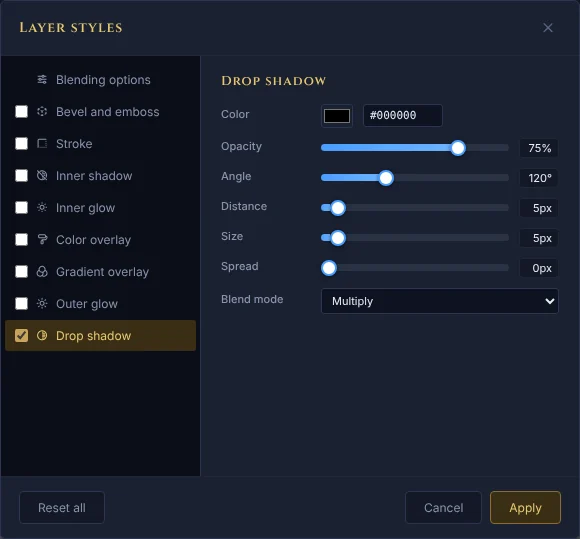
Layer → Layer styles → Drop shadow…: a drop shadow lifts the text off the background. - Export with File → Quick export → JPG. If you want to choose the quality, use File → Export As...: a good-quality JPG at 1280 × 720 stays well under 2 MB.
A design that reads at small sizes
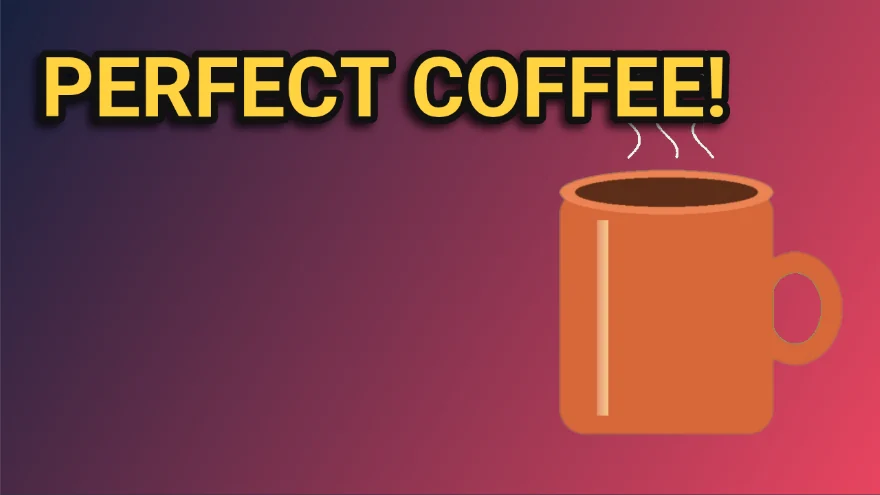
- Three to five words, in capitals or a heavy font. If you have to read a whole sentence, there is too much text.
- Contrast above all: light text with a dark outline on a coloured background, or the other way round.
- A single, large main subject. A face with a clear expression or a recognisable object works better than a busy scene.
- Keep the bottom-right corner clear, where YouTube shows the video length.
- Before exporting, zoom out until the thumbnail is a few centimetres wide on your screen, as on a phone. If it does not work there, it will not work on YouTube.
Common problems
- YouTube says the file is too big. It is over 2 MB. Export as JPG instead of PNG and, if needed, lower the quality slightly in File → Export As....
- The option to upload a custom thumbnail does not appear. The channel is not verified. Verify it with your phone from YouTube Studio and try again.
- Black bars appear or an edge is cropped. The image is not 16:9. Always start from the YouTube thumbnail template, which already has the exact proportions.
- The photo looks pixelated. It was small and has been enlarged too much. Use the biggest original you have, or make the subject a little smaller in the layout.
- The text cannot be read on a phone. There are too many words or too little contrast. Cut words, enlarge the font and raise the outline thickness.
- The video length covers something important. Move text and faces away from the bottom-right corner.
Common questions
Is it free? Yes. GalionToon is free, needs no account and adds no watermark.
Does my photo get uploaded anywhere? No. Everything happens in your browser; the only thing that leaves your device is the file you later upload to YouTube.
Can I reuse the design for my next video? Yes. Save it with File → Save: it keeps its layers, and next time you only change the photo and the text.
Can I use any image from the internet? No. Use your own photos or ones you have permission for. Copyrighted images can get the thumbnail removed by YouTube.
Does it work for other networks? Yes. In File → New…, the Social media tab also has the sizes for Instagram, TikTok, Facebook, X, LinkedIn and Pinterest.
More guides
- How to make your first manga page in your browser6 min read
- How to make a vertical webtoon to read on a phone5 min read
- Speech balloons and speed lines for your comic5 min read
- Comic and manga page sizes: B5, A4, comic book and webtoon5 min read
- How to import your custom brushes4 min read
- How to remove the background from a photo in your browser5 min read
- How to open and save a PSD file in your browser4 min read
- How to make your first animated pixel art3 min read
- How to add subtitles to a video in your browser3 min read
- How to edit your first video in your browser4 min read
- How to crop a photo into a circle for your profile picture4 min read
- How to put text on a photo so it can be read4 min read
- Layer masks: what they are and how to use them4 min read
- How to resize an image for social media without losing quality4 min read
- How to make an Instagram post step by step4 min read
- How to create a sprite sheet for a video game4 min read
- Free fonts for commercial designs: how to choose them5 min read
- How to animate a character with bones in Galion Rig4 min read
- How to convert a drawing or a logo into a vector (SVG)4 min read