How to open a PSD file without Photoshop, in your browser
A PSD arrives, you do not have the program it was made in, and the file is due today. You do not need a subscription to open it: GalionToon reads PSD files in the browser, keeps the layers, and writes the file back out as PSD when you are done.
Open the file
- Open galiontoon.com and enter Galion Photo.
- Use File → Open… and select the .psd, or drag it onto the canvas.
- Wait while the file is read. A large PSD with many layers takes a few seconds, and everything happens on your device.
- The layers panel fills with the layers and groups, with their names, their visibility and their masks.
Diagram: the PSD opens as separate layers, listed in the layers panel. 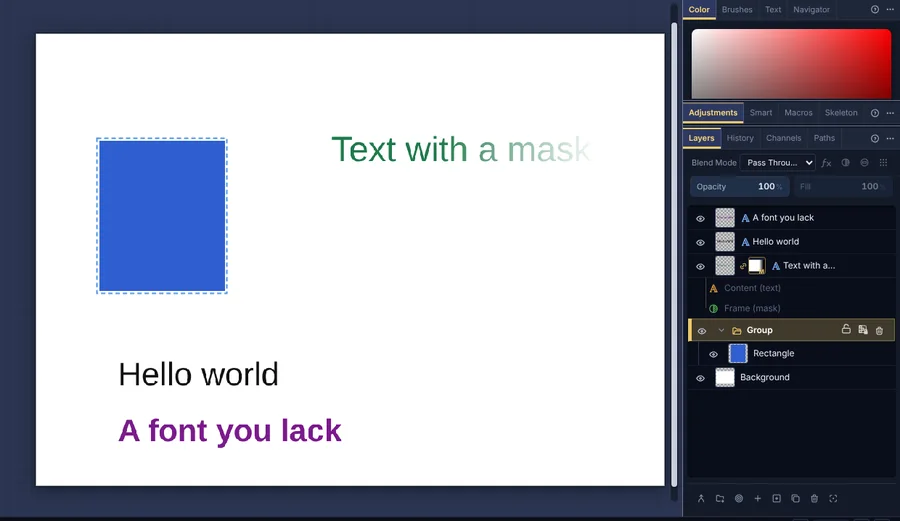
The PSD open: editable text, groups and masks in the layers panel.
What survives the trip
Layers, groups, names, opacity, blend modes, layer masks and the flattened result come through intact, and text layers stay editable: you can retype them, change the font, size or colour, and save them back as text. Adjustment layers and smart objects are read as pixels. One honest limit: a text layer that mixes several styles (different fonts, sizes or colours inside the same layer) opens editable, but when you export it is simplified to a single style. GalionToon marks those layers with a small warning.
If the PSD uses a font you do not have, GalionToon opens the Fonts and warnings window: it tells you which font is missing and which layer uses it, and lets you Load file…, Search the system or Continue with substitutes. In every case it keeps the original font name, so the PSD you export still asks for the right font in whatever program opens it.
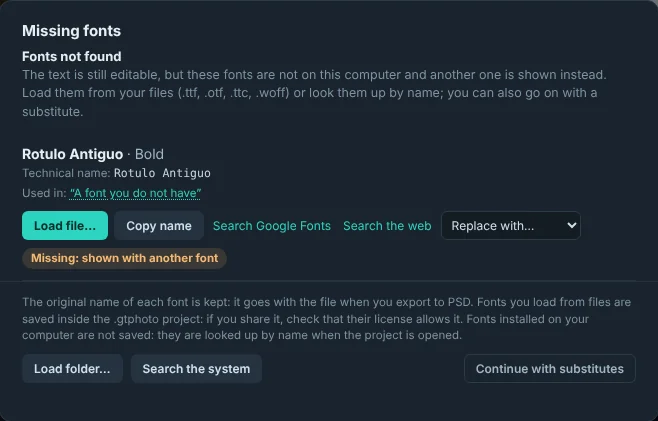
Edit
- Hide, show, reorder, duplicate and group layers in the layers panel.
- Add a layer mask to hide part of a layer without deleting it. The guide How to remove the background from a photo explains how to paint it.
- Use the brush, the eraser, the selections and the filters as you would in any editor.
- Add new text with the text tool. Text you create in GalionToon stays editable while you work.
Save it back
- File → Quick export → PSD writes a PSD with your layers, masks and editable text, ready to send back to whoever sent it to you.
Diagram: a PSD keeps the layers apart; a PNG or JPG flattens them into one. - File → Quick export → PNG or JPG gives you a flat image for the web.
- File → Project with all studios → Save project (.studio) keeps everything exactly as GalionToon has it, which is the safest option if you plan to continue tomorrow.
Practical advice
- Very large files, over a few hundred megabytes, are heavy for any browser. Close other tabs before opening one.
- If the client only needs the final image, send the PNG. The PSD is for whoever will keep editing.
- If you move a mask off the canvas, the part that goes outside is kept while you work, but not if you undo that step or once you save and reopen the file.
- Some applications may ignore the mask on a text layer when they import a PSD. If that happens, apply the mask again after importing the file. GalionToon reads it correctly.
- If something goes wrong, File → Version history… keeps a copy of your work every 10 minutes and lets you go back to any of them.
Common problems
- A text shows up in a different font. That font is missing on your device. In the Fonts and warnings window, load it or search the system for it; you can also open the text font list and click “Use the fonts on my computer”. The exported PSD keeps the original name.
- A text layer has a warning next to its name. It mixes several styles (fonts, sizes or colours). You can edit it, but when you export to PSD it is unified into a single style. If you need to keep them, split the text into several layers before exporting.
- An adjustment layer or a smart object arrives as an image. They are read as pixels: you can move, cover or mask them, but not change their settings. If you need to modify them, do it in the program they were made in.
- The file takes very long or the tab closes. The PSD is too big for the browser’s memory. Close other tabs, open it on a computer rather than a phone and, if you can, ask for a version with fewer layers.
Common questions
Is this legal? Yes. PSD is a file format, and reading or writing one is not restricted. GalionToon is not affiliated with the company that created the format.
Does my file get uploaded? No. It is read in your browser and never sent to a server.
Does it cost anything? No. There is no account, no trial and no watermark.
Can I convert a PSD to PNG or JPG? Yes. Open it and use File → Quick export → PNG or File → Quick export → JPG: you get a flat image that looks just like the PSD.
Is there a size limit? There is no fixed limit: it depends on your device’s memory. PSDs of several hundred megabytes are heavy for any browser, and on a phone the limit comes sooner.
More guides
- How to make your first manga page in your browser6 min read
- How to make a vertical webtoon to read on a phone5 min read
- Speech balloons and speed lines for your comic5 min read
- Comic and manga page sizes: B5, A4, comic book and webtoon5 min read
- How to import your custom brushes4 min read
- How to remove the background from a photo in your browser5 min read
- How to make your first animated pixel art3 min read
- How to add subtitles to a video in your browser3 min read
- How to edit your first video in your browser4 min read
- How to make a YouTube thumbnail for free in your browser4 min read
- How to crop a photo into a circle for your profile picture4 min read
- How to put text on a photo so it can be read4 min read
- Layer masks: what they are and how to use them4 min read
- How to resize an image for social media without losing quality4 min read
- How to make an Instagram post step by step4 min read
- How to create a sprite sheet for a video game4 min read
- Free fonts for commercial designs: how to choose them5 min read
- How to animate a character with bones in Galion Rig4 min read
- How to convert a drawing or a logo into a vector (SVG)4 min read
Photoshop is a registered trademark of Adobe Inc. GalionToon is not affiliated with or endorsed by Adobe.