Speech balloons and speed lines for your comic
Balloons tell you who is speaking and how; speed lines, how the scene moves. They are the last thing added to a page and the first thing read. This guide covers GalionToon’s balloons, speed lines and sound effects, with the details that make them read well.
Your first balloon
- In the comic group of the toolbar, choose Speech balloon.
- Drag on the canvas to draw it and type. The balloon grows to fit the text. Ctrl+Enter, or a click outside, finishes.
- Drag the blue dot to aim the tail at the mouth of whoever is speaking. A click on the balloon selects it; dragging inside moves it with its text; a double-click lets you type again.
Balloon styles
- Oval: normal dialogue.
- Thought: a cloud with bubbles instead of a tail.
- Whisper: a dashed border.
- Shout: spikes, for anything said out loud.
- Radio voice: a voice coming out of a device, with a lightning tail.
- Wavy: a weak, dizzy or otherworldly voice.
- Caption: the narrator box, with no tail.
- Text only: text with no balloon.
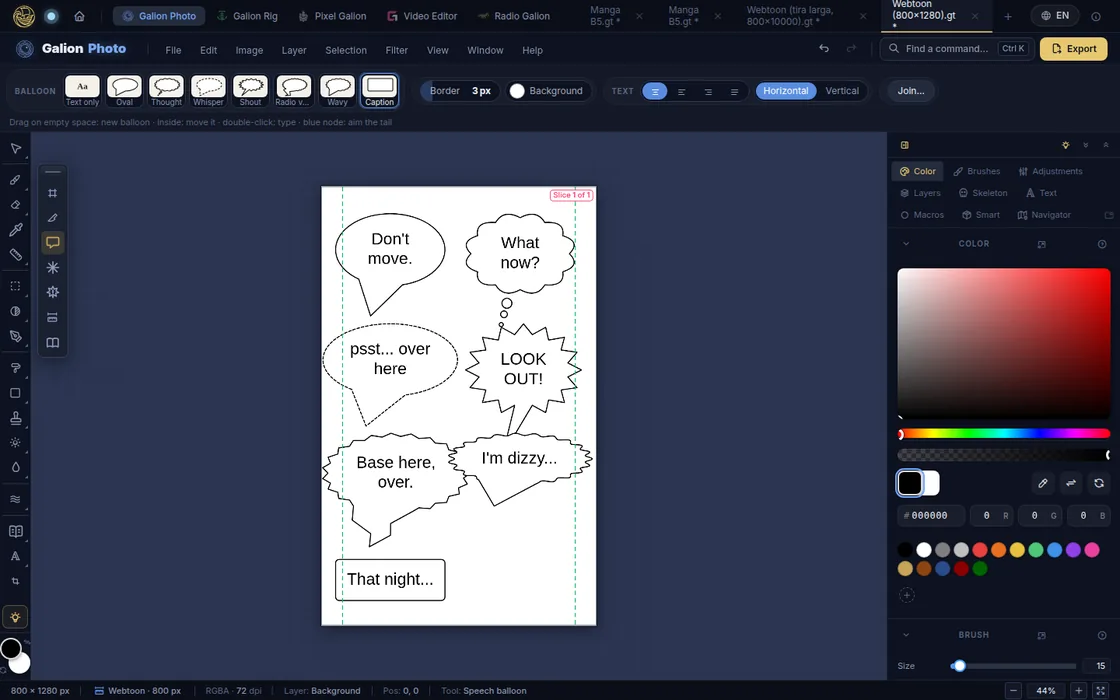
The style, the Border thickness and the Background color are changed in the bar and apply to the selected balloon and to new ones.
Tails and joined balloons
- Straight or curved. With a curved tail, the Curvature slider bends it one way or the other.
- Base width: with the slider, for all tails; by dragging the diamonds at the base, for a single one.
- Several tails. “+ Tail” adds another, for two characters saying the same thing.
- Bends. Drag the small dot on a segment to bend the tail; Alt+click on a bend removes it.
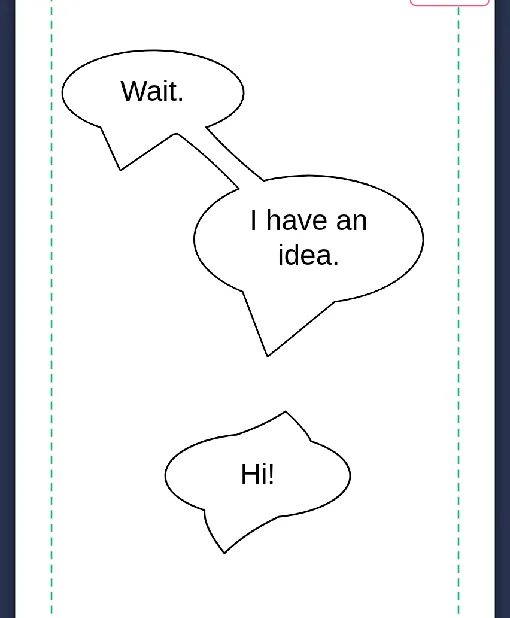
- Join. “Join…” and a click on another balloon connects them with a neck: the same person speaking in two beats. “Separate” pulls them apart.
The text inside the balloon
- The bar aligns the lines: centered (the usual choice), left, right or justified. The block of text is always centered in the balloon.
- Vertical writes in columns from right to left, as in Japanese manga. The balloon fits the columns to its height.
- If a balloon sticks out of the safe area of the page, it turns orange: it could be lost when the page is trimmed.
Speed lines
Choose Speed lines in the comic group. There are three types:
- Focus: lines towards a center, for surprise or a hit. Drag from the center outwards: what you drag is the empty middle.
- Speed: parallel lines, for movement. Drag in the direction of motion.
- Flash: a burst with an open center, for a moment of impact.
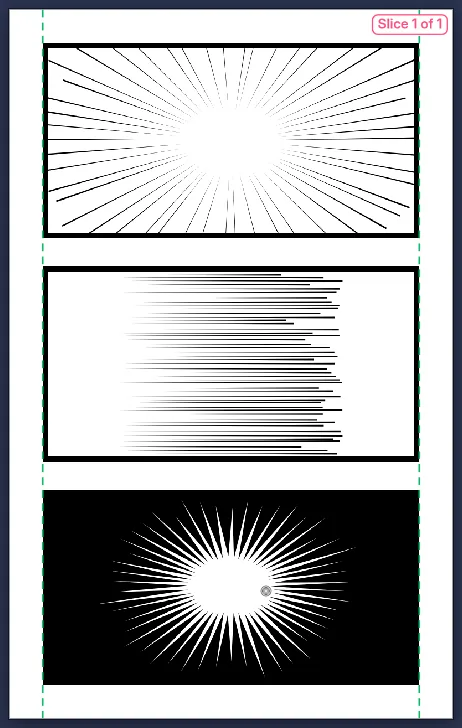
- Ten styles as thumbnails are a starting point; after that everything can change: amount, thickness, length, color.
- Another variation spreads the same lines differently.
- Inside a panel, the lines stay in it and reach exactly to its border.
- Under More options, a white Stroke makes them read on top of dark artwork.
Sound effects
- Choose Sound effect in the comic group and type the word in its bar, or pick one from the list. There are Japanese sound effects too, with their meaning.
- Drag from where the sound starts to where it ends: the length is the size and the direction, the rotation. A click places it at the default size.
- Choose a style (Impact, Explosion, Manga hit, Menace, Speed, Crack, Tremble or Cute) and adjust the Intensity and the Stroke. With a sound effect selected, also its Size, Curve and Angle; “Another variation” moves the letters in a different way.
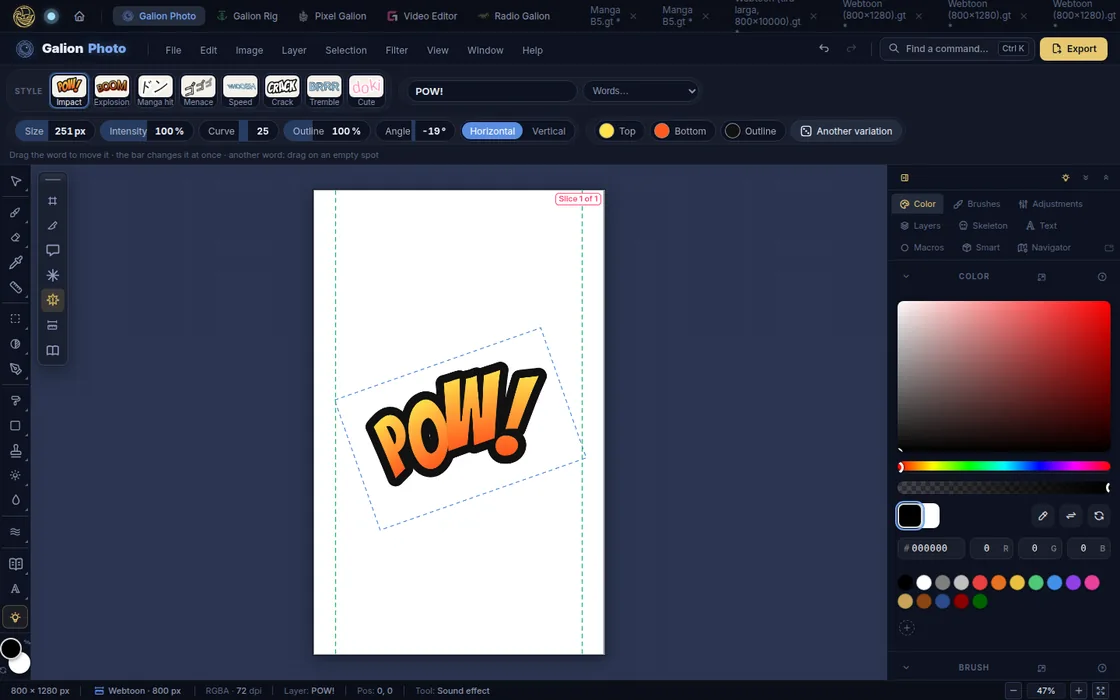
A sound effect is still text: you can rewrite it at any time.
Common problems
- Dragging the tail creates another balloon. Drag from the blue dot at the tip. If the balloon is not selected, click on it first.
- The text spills out of the balloon. The balloon grows as you type; if you shrank it by hand, drag a corner handle or type again and it adjusts.
- The speed lines fill the whole page. They were created outside a panel. Delete them and drag again starting inside the panel.
- The sound effect shows another font. Its font is downloaded the first time. Wait a moment and click “Another variation”; with a connection, it is there from then on.
Common questions
Which font should I use for balloons? A lettering font, in capitals and clear. The GalionToon font catalogue has several comic fonts with free licenses.
Are they exported as vectors? In PDF and vector SVG, balloon text is exported as vectors and stays sharp at any size; the balloon shape goes into the image, at the page resolution. Sound effects go in as images, so they look the same in any program.
How much text fits in a balloon? Less than you think: about 25 words at most. If you need more, split the line into two joined balloons.
Does it work with a finger? Yes. Balloon and speed line handles are larger with a finger, and the bars use sliders you drag.
More guides
- How to make your first manga page in your browser6 min read
- How to make a vertical webtoon to read on a phone5 min read
- Comic and manga page sizes: B5, A4, comic book and webtoon5 min read
- How to import your custom brushes4 min read
- How to remove the background from a photo in your browser5 min read
- How to open and save a PSD file in your browser4 min read
- How to make your first animated pixel art3 min read
- How to add subtitles to a video in your browser3 min read
- How to edit your first video in your browser4 min read
- How to make a YouTube thumbnail for free in your browser4 min read
- How to crop a photo into a circle for your profile picture4 min read
- How to put text on a photo so it can be read4 min read
- Layer masks: what they are and how to use them4 min read
- How to resize an image for social media without losing quality4 min read
- How to make an Instagram post step by step4 min read
- How to create a sprite sheet for a video game4 min read
- Free fonts for commercial designs: how to choose them5 min read
- How to animate a character with bones in Galion Rig4 min read
- How to convert a drawing or a logo into a vector (SVG)4 min read