How to make a vertical webtoon to read on a phone
A webtoon is read by scrolling down with your thumb, one panel after another. There are no pages or spreads: the pace comes from the space between panels. GalionToon has a strip ready to go, shows you how it will look on a phone and exports it in pieces ready to upload.
The strip
- Open galiontoon.com, go into Galion Photo and choose File → New. In Comic / Manga, pick the long webtoon strip (800 × 10,000 px).
- The strip is marked in numbered 1280 px sections, with 60 px margins on the sides. The sections are the pieces an episode is usually uploaded in; the margins keep text away from the edge of the screen.
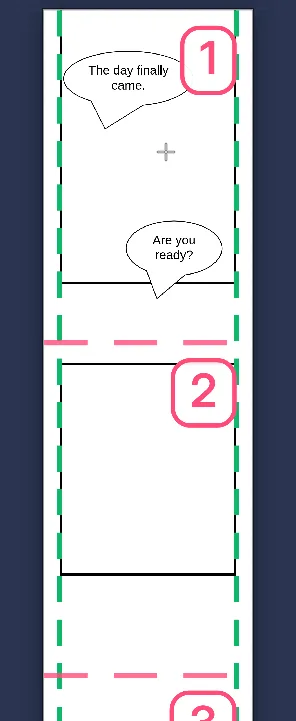
The numbered 1280 px sections and the side margins. - Need a longer strip? Image → Canvas size… with the anchor at the top extends it at the bottom without moving what you have.
Panels with breathing room
- Choose Panels in the comic group. In a vertical strip, one panel per row is the norm: drag to create each one, side to side inside the margins.
- Leave space between panels. A big gap is a pause; a small one, continuous action. Drag the gap to adjust it.
- Set the Paper color in the bar to the background you want: white, black for a night scene or a color to change the mood.
Text that reads on a phone
- The strip is 800 px wide and a phone shows it at about 360 or 400: 20 px text on the strip reads like 9 or 10 px on screen. Use 30 px or more for dialogue.
- Do not put a balloon on top of a section line: if the platform cuts the strip there, the balloon is split.
- Keep balloons inside the margins: with the Speech balloon tool, one that sticks out turns orange.
Preview it like a phone
- Open View → Phone view (webtoon)…. The strip is shown at the width of a phone.
- Scroll with the mouse wheel, by dragging or with the arrow keys. Esc closes the view.
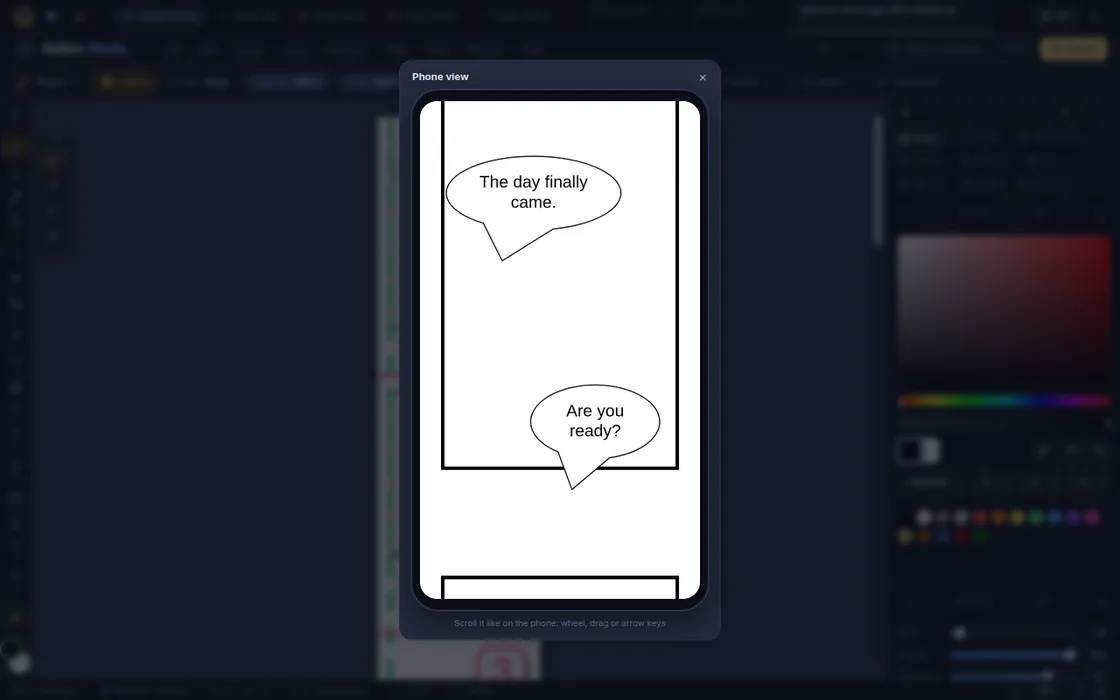
Phone view: this is how your readers will see it.
Export in slices
- Open File → Export As…, choose PNG or JPG and, under Area, In 1280 px slices.
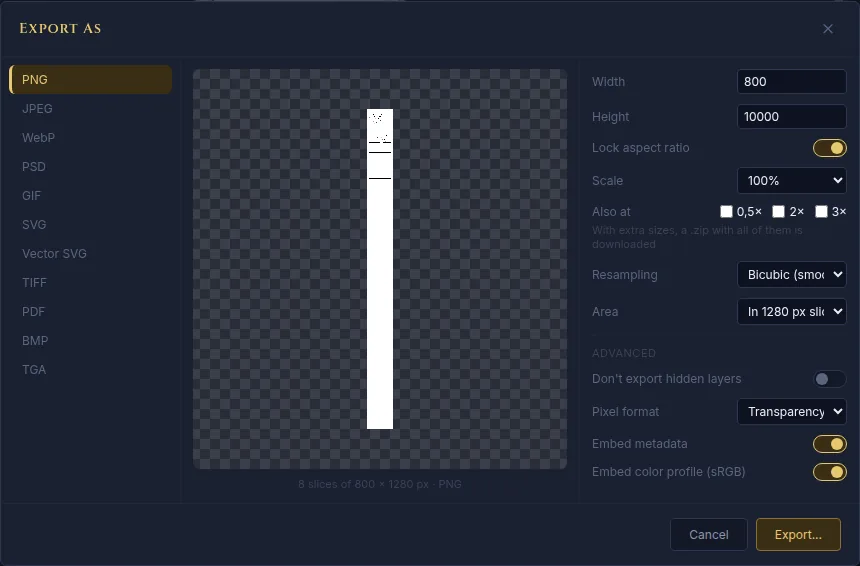
Export in slices: a .zip with the images in order. - You get a .zip with the images numbered in order (
name_01.png,name_02.png…), each as tall as a section. Upload them in that order. - Also save the .gtphoto with File → Save so you can edit the episode later.
Common problems
- The platform rejects the image as too large. You are uploading the whole strip. Export with In 1280 px slices and upload the images one by one, in order.
- Text looks tiny on a phone. Check it in View → Phone view (webtoon)… and raise the font size: 30 px or more on the strip.
- A balloon gets cut between two images. It was on top of a section line. Move it up or down a little: the section lines are visible on the canvas.
Common questions
Why 800 px wide? It is the width the best-known webtoon platforms use. Drawing wider does not look better on a phone, and it weighs more.
Can I draw at a higher resolution? You can, but you will have to reduce the strip to 800 px before exporting it. If you plan to print it one day, plan that separately as a printed page.
How long is an episode? It depends on the platform and your pace. Start with a short one: you learn more by finishing an episode than by making it longer.
Does it work on a tablet? Yes. Panels, balloons and the bars are designed for fingers, and the phone view also scrolls by dragging.
More guides
- How to make your first manga page in your browser6 min read
- Speech balloons and speed lines for your comic5 min read
- Comic and manga page sizes: B5, A4, comic book and webtoon5 min read
- How to import your custom brushes4 min read
- How to remove the background from a photo in your browser5 min read
- How to open and save a PSD file in your browser4 min read
- How to make your first animated pixel art3 min read
- How to add subtitles to a video in your browser3 min read
- How to edit your first video in your browser4 min read
- How to make a YouTube thumbnail for free in your browser4 min read
- How to crop a photo into a circle for your profile picture4 min read
- How to put text on a photo so it can be read4 min read
- Layer masks: what they are and how to use them4 min read
- How to resize an image for social media without losing quality4 min read
- How to make an Instagram post step by step4 min read
- How to create a sprite sheet for a video game4 min read
- Free fonts for commercial designs: how to choose them5 min read
- How to animate a character with bones in Galion Rig4 min read
- How to convert a drawing or a logo into a vector (SVG)4 min read