How to add subtitles to a video in your browser
Most videos are watched without sound, so subtitles are not an extra any more. In G-Editor, the video editor inside GalionToon, you can transcribe the audio on your own computer, correct the text and burn the subtitles into the exported video.
Bring in the video
- Open galiontoon.com and choose G-Editor. If it is your first time, start with How to edit your first video.
- Open your video file, or drag it onto the timeline.
- Cut what you do not need before you subtitle. Every cut afterwards means shifting lines around.
Diagram: cut the part you don’t need and the rest joins up.
Generate the subtitles
- Select on the timeline the clip whose audio you want to transcribe and open the Subtitles tab of the properties panel, on the right.
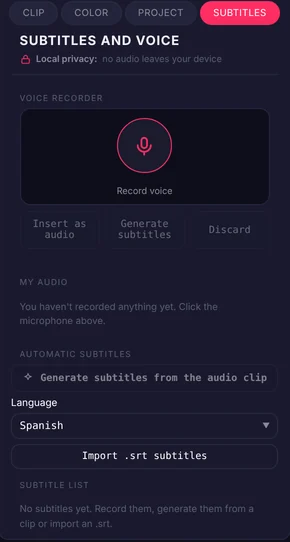
The Subtitles tab: generate from the audio, language and import an .srt. - Under Language, choose the one being spoken. Getting the language right matters more than any other setting.
- Click Generate subtitles from the audio clip.
- Wait. The transcription runs on your computer, so the first run downloads the transcription engine and the speed depends on your machine, not on a server.
- The lines appear in the subtitle list, each with its start and end time.
Diagram: the audio is analysed and one subtitle block appears per phrase.
Correct the text
- Read every line. Automatic transcription is good, and it still gets names, brands and numbers wrong.
- Keep lines short, around forty characters. Two short lines read better than one long one.
- Adjust timings so a line appears a moment before the words and stays a moment after.
- Split any line that covers two sentences. Subtitles are read in glances.
If you already have an .srt
Import it instead of transcribing: click Import .srt subtitles or drop the file onto the window. A translation someone made for you, or a transcript from another tool, comes straight in with its timings and can be adjusted on the timeline.
Export
Export the video once the text is right. The subtitles become part of the picture, which is what you want for social media, where separate subtitle files are often ignored. If you also need the file (for YouTube, for example), choose the separate subtitles option in the Export window: SRT, WebVTT or ASS.
Practical advice
- Long videos take longer to transcribe. Do it in pieces if your computer is modest.
- Check the subtitles on a phone. What looks fine on a big screen can be unreadable at hand size.
Common problems
- No lines come out. Transcription uses the audio of the chosen clip. Check that you selected the clip with the voice and that its audio is not muted.
- The text comes out in another language or full of mistakes. Check Language before generating. With a lot of background noise or several people talking at once, accuracy drops: fix it by hand or record cleaner audio.
- The subtitles are out of sync. You probably cut the video after generating them. Cut first and subtitle last; if it is already done, move the affected lines on the timeline.
- Transcription takes long or the browser struggles. Everything happens on your device. With long videos, subtitle in parts and close other tabs.
Common questions
Does my video get uploaded? No. Everything, including the transcription, happens in your browser.
Which languages work? The transcription engine understands the major languages. Accuracy drops with heavy background noise or several people talking at once.
Is it free? Yes, with no account and no watermark.
Can I export the subtitles as an .srt file? Yes. In the Export window, the separate subtitles option also creates an SRT, WebVTT or ASS file next to the video.
Does it work for vertical TikTok or Reels videos? Yes. The subtitles are burned into the picture; in vertical format, keep the lines even shorter so they do not cover half the screen.
More guides
- How to make your first manga page in your browser6 min read
- How to make a vertical webtoon to read on a phone5 min read
- Speech balloons and speed lines for your comic5 min read
- Comic and manga page sizes: B5, A4, comic book and webtoon5 min read
- How to import your custom brushes4 min read
- How to remove the background from a photo in your browser5 min read
- How to open and save a PSD file in your browser4 min read
- How to make your first animated pixel art3 min read
- How to edit your first video in your browser4 min read
- How to make a YouTube thumbnail for free in your browser4 min read
- How to crop a photo into a circle for your profile picture4 min read
- How to put text on a photo so it can be read4 min read
- Layer masks: what they are and how to use them4 min read
- How to resize an image for social media without losing quality4 min read
- How to make an Instagram post step by step4 min read
- How to create a sprite sheet for a video game4 min read
- Free fonts for commercial designs: how to choose them5 min read
- How to animate a character with bones in Galion Rig4 min read
- How to convert a drawing or a logo into a vector (SVG)4 min read