How to edit your first video in your browser
You do not need to install anything to put a short video together. G-Editor, the video editor inside GalionToon, opens in your browser, works with the files on your own computer and exports a finished video. This guide takes you from a folder of clips to your first exported file. Everything runs on your machine, so how smoothly it plays depends on your computer rather than on your connection. Plan on about ten minutes for the first try.
What you need
- A browser such as Chrome, Edge or Firefox on a computer. Editing video is heavy work, so a computer is more comfortable than a phone.
- A few clips, and if you like, some music or an image for the title.
- A rough idea of the story: what comes first, what comes last.
- Enough free disk space for the exported file: a few minutes of video at good quality can take hundreds of megabytes.
Import your clips
- Open galiontoon.com and choose G-Editor. The first time, a short tour shows you where everything is.
- Click New project, choose the format (16:9 for YouTube, 9:16 for TikTok, Reels or Shorts, 1:1 or 4:5 for Instagram) and click Create project. The project saves itself in your browser.
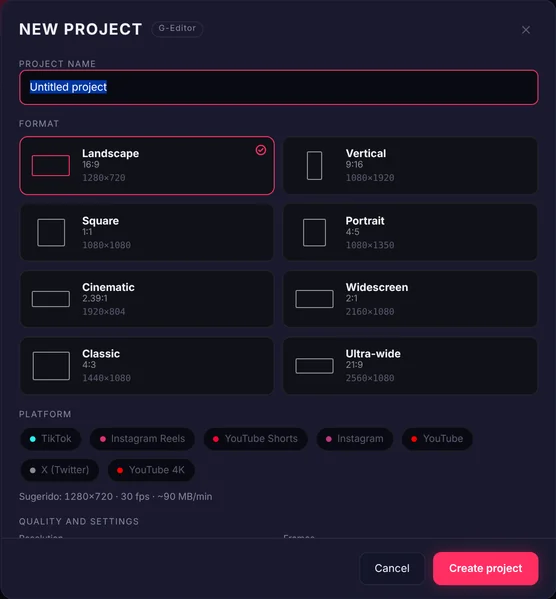
New project: choose the format or the platform before you start. - Drag your videos, images or audio onto the files panel. They are read from your computer, not uploaded.
- Drag each clip from the files panel down to the timeline, or double-click it: it is added at the end. Drop them roughly in order; you will fix it later.
The real G-Editor: import two clips and add them to the timeline by double-clicking.
Cut
- Play the clip and stop where the good part starts.
- Double-click the clip at that point to split it in two. Do the same where the good part ends, and remove the piece you do not want.
Diagram: cut the part you don’t need and the rest joins up. - To trim just the start or the end, pull the edge of the clip instead of splitting it.
Put the clips in order
- Drag clips along the timeline to move them. Close any gaps so the video does not jump to black.
- Select a clip to see its properties: position, scale, effects, chroma key and audio. Change one thing at a time and play it back.
- Keep cuts on a movement or a sound. A cut that lands in the middle of a still moment is the one people notice.
Export
- Click Export.
- Choose the platform (TikTok, Reels, Shorts, Instagram, YouTube, X…) and GalionToon sets the resolution and quality; you can also change them by hand under “Video”. Under Format, MP4 (H.264) plays almost everywhere and WebM (VP9) is lighter for the web.
The real G-Editor: open Export and choose the platform (here, YouTube 1080p). - Click Export in that window. If you only want part of the timeline, export just that range. Wait until the file is ready and save it.
Practical advice
- Watch the whole video once before exporting. Mistakes hide in the transitions.
- Short beats long. If a shot does not add anything, cut it.
- Export a short range first to check the quality before exporting the full video.
- Keep your original clips in one folder and do not rename or move them while you work, so they are always easy to find again.
Common problems
- A video will not import or stays black. Your browser cannot read that format, such as the HEVC (H.265) some phones record. On an iPhone, Settings → Camera → Formats → Most Compatible records in H.264; for videos you already have, convert them to MP4 (H.264) first.
- Only WebM appears under Format. Your browser cannot encode H.264. Chrome and Edge on a computer usually offer MP4; if not, WebM is fine for the web and for uploading to YouTube.
- The video jumps to black between two clips. There is a gap on the timeline. With Ripple on (bottom right), deleting a piece closes the gap on its own; otherwise drag the clip up to the previous one: the Magnet snaps it.
- Exporting takes a long time. It all happens on your device, so long or 4K videos take a while. Try exporting a short range first and close other tabs.
- A project is lost. Projects save themselves in your browser, but they are deleted if you clear its data. Under Projects, Save copy (.gtproj) creates a file with the project and its media inside, which you can open on another computer.
Common questions
Are my videos uploaded? No. Everything is read and processed in your browser, including the export.
Can I add subtitles? Yes, G-Editor can also transcribe the audio or import an .srt file. The guide How to add subtitles to a video explains it.
Is it free? Yes, with no account and no watermark.
Which format should I choose? MP4 if you are going to send the video or post it on a social network; WebM if it will live on a web page and you want a lighter file.
Can I make vertical videos for TikTok or Reels? Yes. When you create the project, choose Vertical 9:16 or pick the TikTok, Instagram Reels or YouTube Shorts platform directly.
More guides
- How to make your first manga page in your browser6 min read
- How to make a vertical webtoon to read on a phone5 min read
- Speech balloons and speed lines for your comic5 min read
- Comic and manga page sizes: B5, A4, comic book and webtoon5 min read
- How to import your custom brushes4 min read
- How to remove the background from a photo in your browser5 min read
- How to open and save a PSD file in your browser4 min read
- How to make your first animated pixel art3 min read
- How to add subtitles to a video in your browser3 min read
- How to make a YouTube thumbnail for free in your browser4 min read
- How to crop a photo into a circle for your profile picture4 min read
- How to put text on a photo so it can be read4 min read
- Layer masks: what they are and how to use them4 min read
- How to resize an image for social media without losing quality4 min read
- How to make an Instagram post step by step4 min read
- How to create a sprite sheet for a video game4 min read
- Free fonts for commercial designs: how to choose them5 min read
- How to animate a character with bones in Galion Rig4 min read
- How to convert a drawing or a logo into a vector (SVG)4 min read