How to make your first animated pixel art
Animated pixel art looks harder than it is. Four frames and a good silhouette are enough for a character that already feels alive. This guide walks through the first one in Pixel Galion, the pixel art studio inside GalionToon.
Set up the canvas
- Open galiontoon.com and choose Pixel Galion.
- Go to File → New sprite…. In the New sprite window pick what you are drawing and a small size: 32 × 32 for a character, 64 × 64 if you want a little scenery, and keep the background transparent. Small sizes are not a limitation, they are what makes the style readable.
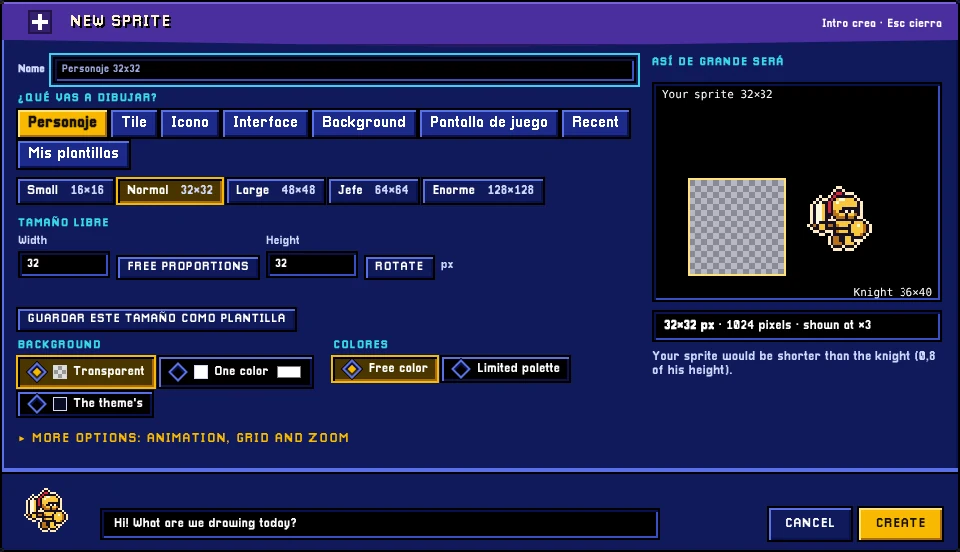
New sprite: pick what you are drawing, a small size and a transparent background. - Turn on the grid so you can see where each pixel lands.
- Pick a short palette, four or five colours. A limited palette is the fastest way to make a drawing look deliberate.
Draw the first frame
- Use the pencil at size 1. In pixel art, every pixel is a decision.
- Start with the silhouette in one flat colour. If the shape is unrecognisable in black, no amount of shading will save it.
- Add a darker tone for shadow and a lighter one for the lit side. Two tones are enough to read as volume.
- Leave the details for last, and cut half of them. Pixel art rewards restraint.
Animate
- Open the Frame menu and click New frame. It starts just like the previous one, which is what you want.
Diagram of frames and a playhead, not the Pixel Galion screen. - Turn on onion skin with Frame → Onion skin or the O key to see the previous and next frames behind the current one as ghosts.
Diagram: the previous frame shows as a ghost behind the current one. - Move the parts that change and leave the rest alone. For a walk cycle, that means the legs and a small up-and-down of the body.
- Four frames are enough for a first loop: contact, down, passing, up.
- Preview the loop and fix whatever jumps. Most of the time it is one pixel in one frame.
Export
Use File → Quick export → Export GIF to get the animation as a file you can share anywhere. Use Export PNG (frame), in the same submenu, if you only need one frame, for example for an icon or an avatar. Both downloads are made in your browser, so the drawing is never uploaded.
Mistakes everyone makes at the start
- Drawing too large. A 300 × 300 canvas is a normal drawing with visible pixels, not pixel art.
- Using twenty colours. Three tones per material is plenty.
- Animating everything at once. Move one thing, check the loop, then move the next.
Common problems
- The animation is too fast or too slow. Each frame has its own duration. Change it with Frame → Edit duration…; pause frames usually last twice as long as the rest.
- Onion skin does not show. Turn it on with Frame → Onion skin or the O key; it only shows something when there is another frame before or after the current one.
- The GIF has blotches or ugly edges. A GIF allows 256 colours and all-or-nothing transparency. Avoid soft gradients and semi-transparent edges; with a short palette it does not happen.
- It looks blurry when enlarged in another program or on a website. Pixel art is scaled by whole numbers (× 2, × 4) and without smoothing, using “nearest neighbour”. Any other method blurs the pixels.
Common questions
Do I need a graphics tablet? No. Pixel art is one of the few disciplines where a mouse is perfectly fine.
Can I import a GIF I already have? Yes: File → Import → Animated GIF… opens it and splits it into frames, which is a good way to study animations you like.
Is it free? Yes, with no account and no watermark.
Can I export a sprite sheet for a game? Yes. The Sheet tab at the top gathers the frames into a single image, ready for a game engine.
Is my work saved? Yes. Pixel Galion makes an automatic backup in your own browser whenever there are changes (File → Auto-backup). It does not replace Save (Ctrl+S), which gives you the project file.
More guides
- How to turn an image into pixel art5 min read
- How to make your first manga page in your browser6 min read
- How to make a vertical webtoon to read on a phone5 min read
- Speech balloons and speed lines for your comic5 min read
- Comic and manga page sizes: B5, A4, comic book and webtoon5 min read
- How to import your custom brushes4 min read
- How to remove the background from a photo in your browser5 min read
- How to open and save a PSD file in your browser4 min read
- How to add subtitles to a video in your browser3 min read
- How to edit your first video in your browser4 min read
- How to make a YouTube thumbnail for free in your browser4 min read
- How to crop a photo into a circle for your profile picture4 min read
- How to put text on a photo so it can be read4 min read
- Layer masks: what they are and how to use them4 min read
- How to resize an image for social media without losing quality4 min read
- How to make an Instagram post step by step4 min read
- How to create a sprite sheet for a video game4 min read
- Free fonts for commercial designs: how to choose them5 min read
- How to animate a character with bones in Galion Rig4 min read
- How to convert a drawing or a logo into a vector (SVG)4 min read