How to animate a character with bones in Galion Rig
Animating drawing by drawing takes a long time. With bones, you draw the character once, in pieces, give it a skeleton and only have to set a few poses: the program works out the in-between frames. Galion Rig does it inside your browser, and this guide animates a walking character from start to finish.
The idea in a few words
- A bone is a segment with an origin and a tip. The origin is the joint: the bone rotates around it.
- Bones are chained: if you move the body bone, the legs and arms that hang from it follow.
- Each piece of the drawing is bound to a bone and moves with it.
- A key stores a bone’s position at a frame. Between two keys, the movement is calculated automatically.
- Pose is inverse kinematics: you drag the tip of a bone, such as the hand, and its whole chain rearranges itself to reach it.
Prepare the drawing
Split the character into pieces, each one a PNG with a transparent background and all the same size: the body with the head, each leg and each arm. That way every piece fits in its place when imported. You can draw them in Galion Photo or Pixel Galion; if you start from a whole illustration, the guide Layer masks helps you separate them.
Step by step: a walking character
- Open galiontoon.com and choose Galion Rig. The first time you can pick Start in Apprentice, which explains each tool as you use it.
- Click Import and choose the pieces: you can pick several at once, one per layer. They come in as layers in the Layers panel.
- In Rig mode, choose Bone (H key) and drag from the origin to the tip: first the body, from the hip to the neck; then each leg, from the hip to the foot, and each arm, from the shoulder to the hand. Each new bone hangs from the selected bone or from the one you touch when you start.
- Bind each piece to its bone: drag each layer onto its bone, or click Bind them in the Layers panel; each layer follows the bone on top of it. Switching to Animate does it for you.
- Switch to Animate mode (A key) and go to frame 1. With Pose (P key), move one leg forward and the opposite arm: every change sets a key. You can also set one by hand with Key (K key).
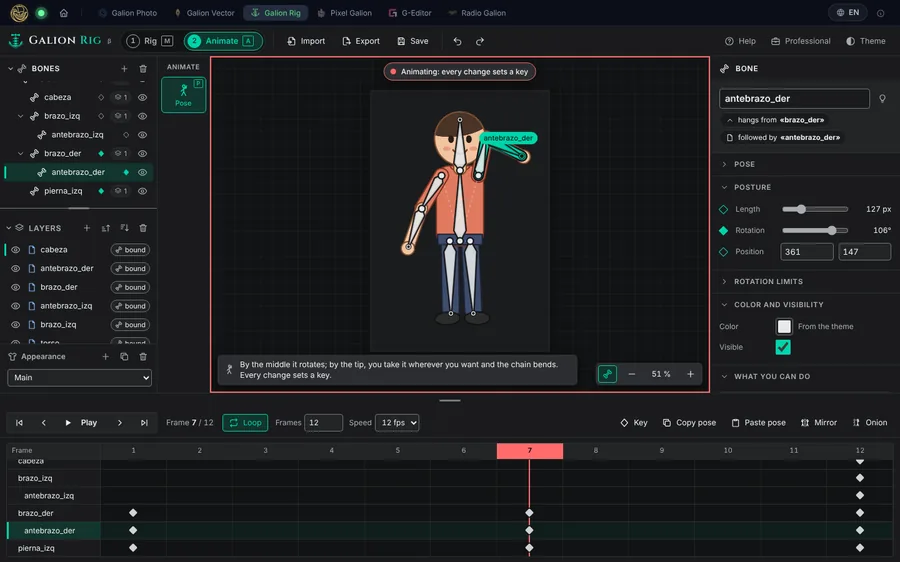
Galion Rig, Animate mode: each piece bound to its bone and keys on frames 1, 7 and 12. - Go to frame 7 and make the opposite pose, with its keys. On frame 12, repeat the first pose so the step closes the cycle.
- Click Play (or press Space) with Loop turned on to watch it walk.
The result, exported as an animation: 12 frames worked out from three poses. - Click Export and choose the format: Animated GIF or WebM video to share, Sprite sheet (PNG + JSON) or the skeleton JSON for game engines. With Save you keep the project (.gtrig) to carry on another day.
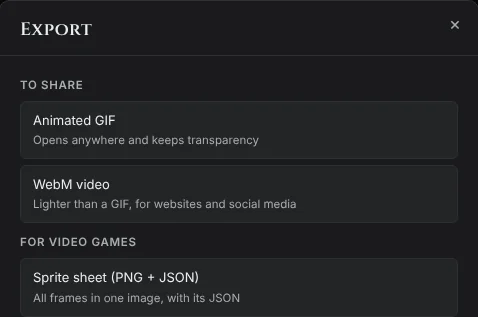
Export: to share, for video games or to carry on another day.
The Rig tools
- Select (S): choose a bone and move or rotate it.
- Bone (H): create bones by dragging from origin to tip.
- Pose (P, in Animate): drag the tip and the chain rearranges itself.
- Influence (W): to deform a single image with a mesh, set how much each bone affects each area (red, a lot; blue, a little).
- Warp (D): place anchor points and drag to deform freely, without a skeleton.
Common problems
- A piece does not move with its bone. It is not bound to its bone. Drag its layer onto the bone or click Bind them in the Layers panel.
- An arm rotates from an odd point. A bone rotates around its origin. Delete it and create it again starting right at the joint.
- The animation jumps when it loops back to the start. The last frame does not match the first. Copy the first pose with Copy pose and paste it on the last frame with Paste pose, or shorten the animation.
- A piece is in front when it should be behind. Change the layer order with the Move the layer forward and Move the layer backward buttons in the Layers panel.
- The GIF is too heavy. Reduce the drawing size or the number of frames. The WebM video is usually lighter.
Common questions
What is inverse kinematics? It means moving a chain of bones from its end: you drag the hand and the forearm and arm place themselves. In Galion Rig it is the Pose tool.
How many frames does the animation have? Twelve to start with, played at 12 per second. To change it, type another number in Frames, next to the timeline.
Can I use the animation in a video game? Yes. Export a Sprite sheet (PNG + JSON), as How to create a sprite sheet for a video game explains, or a skeleton JSON if your engine animates with bones.
How do I carry on another day? Click Save to download the .gtrig project. To open it, use Import or drag it onto the Galion Rig canvas.
Is it free and private? Yes. Galion Rig is free and works in your browser: your drawings are not uploaded to any server, and exports work even offline.
More guides
- How to make your first manga page in your browser6 min read
- How to make a vertical webtoon to read on a phone5 min read
- Speech balloons and speed lines for your comic5 min read
- Comic and manga page sizes: B5, A4, comic book and webtoon5 min read
- How to import your custom brushes4 min read
- How to remove the background from a photo in your browser5 min read
- How to open and save a PSD file in your browser4 min read
- How to make your first animated pixel art3 min read
- How to add subtitles to a video in your browser3 min read
- How to edit your first video in your browser4 min read
- How to make a YouTube thumbnail for free in your browser4 min read
- How to crop a photo into a circle for your profile picture4 min read
- How to put text on a photo so it can be read4 min read
- Layer masks: what they are and how to use them4 min read
- How to resize an image for social media without losing quality4 min read
- How to make an Instagram post step by step4 min read
- How to create a sprite sheet for a video game4 min read
- Free fonts for commercial designs: how to choose them5 min read
- How to convert a drawing or a logo into a vector (SVG)4 min read