How to create a sprite sheet for a video game
A video game does not play a GIF: it loads a single image with every frame of the animation laid out in a grid, the sprite sheet, plus a data file that tells it where each frame is and how long it lasts. Pixel Galion generates both from your animation, inside your browser.
What you need
- An animation made in Pixel Galion. If you do not have one yet, the guide How to make a pixel art animation creates it step by step. An animated GIF you already have also works.
- All frames at the same size (for example, 32 × 32). That is what almost every engine expects.
- To know which engine you will use: Phaser, Godot, Unity or another. It changes which data format is best to export.
The quick way: export the animation as a sheet
- Open galiontoon.com and choose Pixel Galion. Open your animation, or bring in a GIF with File → Import → Animated GIF…: it is split into frames.
- Check each frame’s duration in Frame → Edit duration…. Those durations travel inside the data file.
- Open File → Export animation… and keep Spritesheet (PNG) + animation JSON ticked. Untick what you do not need, such as the animated GIF.
- In the spritesheet options, set the number of columns (with 8 frames and 4 columns you get a 4 × 2 grid), the spacing in pixels between frames and the Scale. For pixel art, keep the scale at 1: the engine will enlarge it.
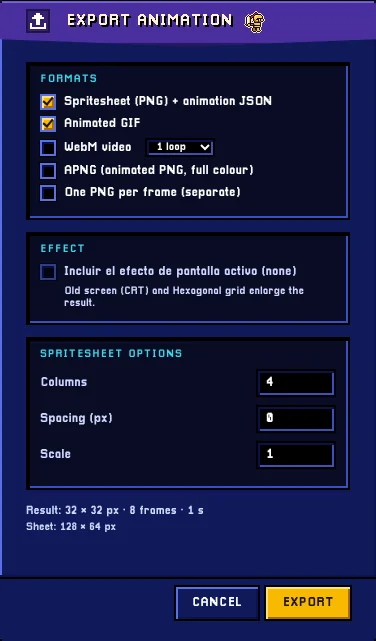
File → Export animation…: sprite sheet and JSON in a single step. - Click Export. The sheet is downloaded as a PNG with a transparent background, together with the JSON holding each frame’s position and duration.
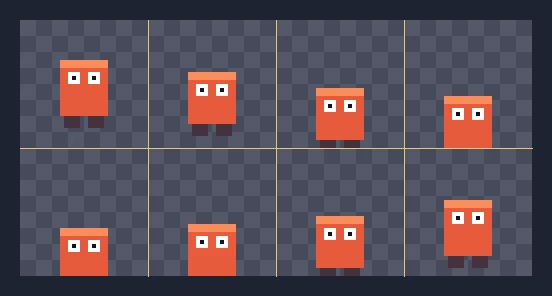
The result: eight 32 × 32 frames in a 4 × 2 grid, with a transparent background (enlarged ×4).
More control: the Spritesheet tool
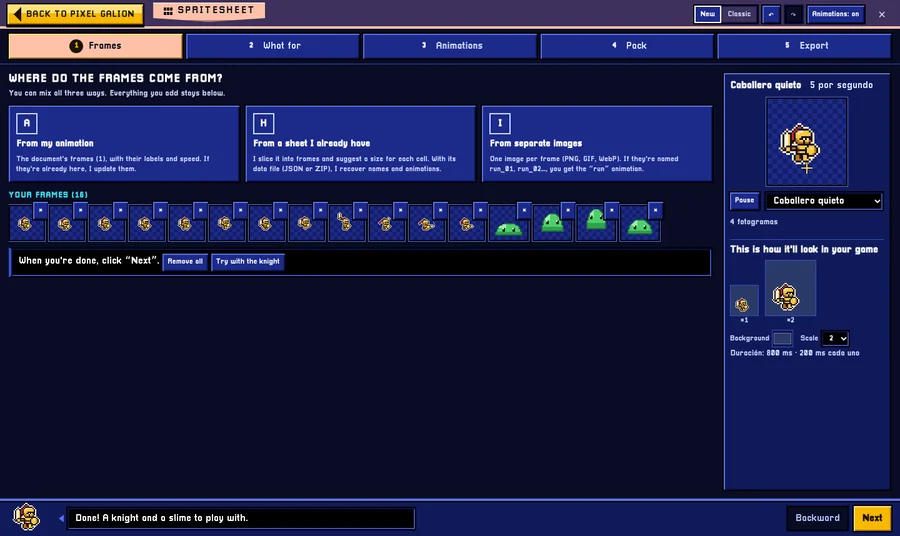
For a game with several animations, click the Sheet tab at the top. The Spritesheet tool opens and takes you through five steps with Next and Backward; on the right, an animated preview shows how it will look in your game. To try it before using your own drawings, a button on the first step loads the sample knight’s frames.
- Frames: where they come from. From your animation, from a sheet you already have (it slices it into cells and, with its JSON or ZIP, recovers names and animations) or from separate images.
- What for: the target. Godot, Unity, Web (JSON atlas, Hash or Array), GameMaker or a single image; the one you pick sets the trimming, margins, edges and format.
- Animations: the name, speed and frames of each one (walk, jump, attack…), the pivot point and, for the game programmer, hitboxes and events.
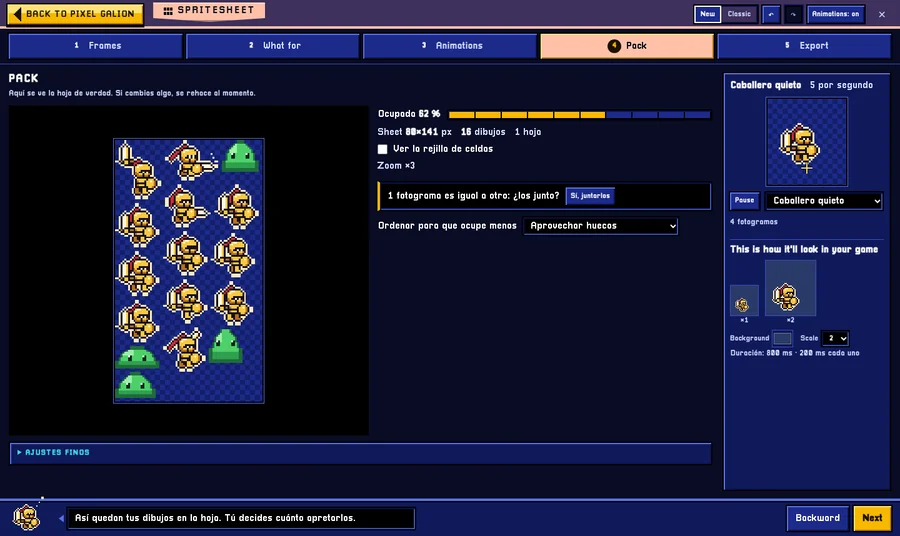
- Pack: how frames are placed on the sheet. Trimming of transparent edges, protected edges, spacing between sprites, power of 2, a maximum size from 256 to 4096 pixels, spreading across several sheets when they do not fit, and merging identical frames.
- Export: which animations you take and at what size (×1 to ×4, with crisp pixels), and the buttons to download the sheet as PNG, the data, a GIF or everything in a ZIP.
How to use it in your engine
- Phaser: load the sheet with its animation JSON or, from the Spritesheet tool with the Web target, with its JSON atlas. Animations and durations arrive ready-made.
- Godot: put the PNG in a Sprite2D and set the columns and rows (hframes and vframes), or create an AnimatedSprite2D and add the frames from the sheet.
- Unity: import the PNG with Sprite Mode set to Multiple and, in the Sprite Editor, use Slice → Grid By Cell Size with your frame size.
- Other engines: if they read none of the data formats, use only the PNG and cut it by frame size; that is why a regular grid is worth it.
Common problems
- Lines or pixels from the neighbouring frame appear at the edges. The engine blends nearby pixels when scaling. Raise the spacing to 1 or 2 pixels and, in the Spritesheet tool, protect the edges.
- The character looks blurry in the game. The engine is smoothing the texture. Give it point or “nearest” filtering: Filter Mode Point in Unity, the Nearest filter in Godot or
pixelArt: truein Phaser. - The frames jitter: the character moves on its own. Trimming cuts transparent edges and stores the offset in the JSON. If your engine does not read it, turn trimming off.
- The sheet is too big. Lower the maximum size, merge identical frames or let it spread across several sheets.
- The engine does not understand the JSON. Try another target in the What for step, or export a simple grid with a set number of columns and cut it by size in the engine.
Common questions
What is the JSON for? It stores where each frame is inside the PNG, how long it lasts and which animation it belongs to. Without it, the engine only sees one big image.
Can I slice a sheet I already have? Yes. In the Spritesheet tool, on the Frames step, choose From a sheet I already have: it slices it into frames and suggests a size for each cell; with its data file (JSON or ZIP) it recovers names and animations.
Does it open .ase files? Yes: File → Import → Project from another program… opens .ase files, and the JSON it exports uses an animation format that many engines already understand.
Does the sheet keep transparency? Yes. The PNG has a transparent background, which is what a game character needs.
Can I use the sprites in a commercial game? The sprites you draw are yours. GalionToon is free and adds no marks or conditions to what you export.
More guides
- How to turn an image into pixel art5 min read
- How to make your first manga page in your browser6 min read
- How to make a vertical webtoon to read on a phone5 min read
- Speech balloons and speed lines for your comic5 min read
- Comic and manga page sizes: B5, A4, comic book and webtoon5 min read
- How to import your custom brushes4 min read
- How to remove the background from a photo in your browser5 min read
- How to open and save a PSD file in your browser4 min read
- How to make your first animated pixel art3 min read
- How to add subtitles to a video in your browser3 min read
- How to edit your first video in your browser4 min read
- How to make a YouTube thumbnail for free in your browser4 min read
- How to crop a photo into a circle for your profile picture4 min read
- How to put text on a photo so it can be read4 min read
- Layer masks: what they are and how to use them4 min read
- How to resize an image for social media without losing quality4 min read
- How to make an Instagram post step by step4 min read
- Free fonts for commercial designs: how to choose them5 min read
- How to animate a character with bones in Galion Rig4 min read
- How to convert a drawing or a logo into a vector (SVG)4 min read