Free fonts for commercial designs: how to choose them
A font is a piece of software, and like any software it has a licence that says what you can do with it. Many websites offer “free” fonts that are in fact only free for personal use: if you use them in a logo, a product or your business website, you are breaking their licence. This guide explains how to tell them apart and how to use the 200 open fonts in GalionToon’s catalog.
“Free” does not mean “free for commercial use”
- Free for personal use: you can download it, but not use it in anything you sell or that promotes a business.
- Demo version: a sample, sometimes without every character, so that you buy the full licence.
- Open licence, such as the SIL Open Font License (OFL) or Apache 2.0: free for commercial work too. These are the ones you want if you will charge for your design or use it in your company.
What the OFL allows
The OFL is the most common licence for open fonts. Put simply:
- You can use it in any design, commercial ones included: logos, T-shirts, posters, books, videos, websites and apps.
- You can embed it in a PDF, a website or an app.
- You can modify and share it, always for free and with its licence.
- You cannot sell the font on its own, as a font file.
- If you modify it, you cannot publish it under its original name when that name is reserved.
The Apache 2.0 licence is similar in practice: it also allows commercial use. This is a general explanation, not legal advice; for a specific case, read the font’s full licence.
How to tell whether a font is free
- Look for the licence file that comes with the download: it is usually called OFL.txt or LICENSE. If there is no licence, do not assume you can use it.
- Check where it comes from. Google Fonts publishes fonts with open licences; on other websites, each font may have different terms.
- Be wary of “free for personal use”, “demo” or “non-commercial”: they are not valid for commercial work.
- In GalionToon, every font in the catalog has its licence, author and source in Font credits.
Step by step: using GalionToon’s catalog
- Open galiontoon.com, choose Galion Photo and pick the Text tool (T key).
- Click on the canvas and type. Then open the font list in the top bar.
- Filter by group: Headlines, Modern, Classic, Code, Comic, Handwriting or Pixel. Each font is shown written in its own style.
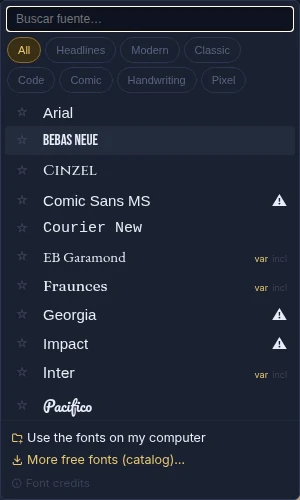
The font list filtered by Headlines: each font is shown in its own style. - Choose one. If it has not been downloaded yet, GalionToon downloads it right then and applies it; from then on it also works offline.
- To see the whole catalog, click More free fonts (catalog)… at the bottom of the list and use Add on the ones you want to keep at hand.
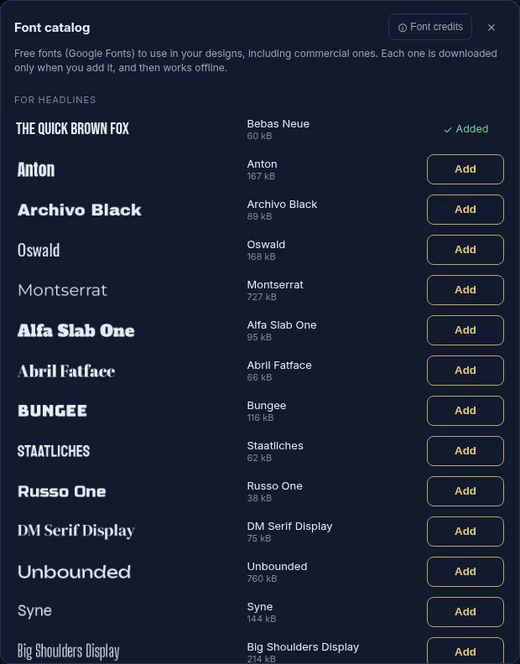
The catalog: 200 open fonts, with their licence in Font credits. - Star your favourites: they appear at the top of the list, next to the recently used ones.
Which font for what
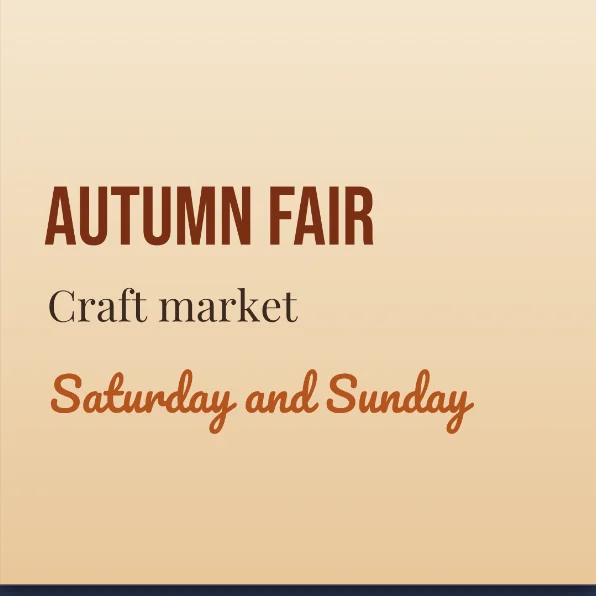
- Headlines and posters: Bebas Neue, Anton, Oswald or Abril Fatface. Heavy and eye-catching.
- Text for reading: Open Sans, Poppins or Nunito; for a more classic feel, Lora, Playfair Display or Libre Baskerville.
- Comics and fun designs: Bangers, Luckiest Guy, Lobster or Fredoka.
- Handwriting: Pacifico, Dancing Script, Caveat or Great Vibes, for one or two words.
- Code and a technical look: JetBrains Mono, Fira Code or IBM Plex Mono.
- Retro video games: Press Start 2P, VT323 or Pixelify Sans.
- Combine two or three at most: one for the title and another for the text is usually enough. The guide How to put text on a photo so it can be read explains how to keep them readable.
Common problems
- When I open the design on another computer, the font changes. Catalog fonts download again automatically when the file is opened on galiontoon.com. Fonts you loaded from your computer must also be installed on the other computer.
- Letters such as ñ, accents or € are missing. Not with the catalog: its 200 fonts were chosen after checking they have accents, ñ, ¿, ¡ and €. With fonts from other websites, check before you design.
- I exported to PSD and another program shows a different font. The PSD keeps the font’s name, but the program that opens it needs the font installed. Download it from its link in Font credits and install it on that computer.
- A catalog font will not download. The first download needs a connection. Check that you are online and choose it again; after that it will not be needed.
- I cannot find a particular font. Type its name into the list’s search box. If it is not in the catalog, you can load your own with “Use the fonts on my computer”, after checking its licence.
Common questions
Can I use these fonts in a logo for my business? Yes. The catalog fonts have OFL or Apache 2.0 licences, which allow commercial use, logos included.
Do I have to credit the author in my design? Not in a design. The licence must, however, go with the font file if you share it or include it in a product.
Can I sell a template that uses these fonts? You can sell your design. If you also include the font file, it must go with its licence, and you can never sell the font on its own.
What about the fonts that came with my computer? You can usually design with them, but their licence does not let you share the font file. If someone else has to edit your design, an open font is more convenient.
Where can I see each font’s licence? In Font credits, from the catalog window: author, licence and source link for each one. Of the 200, 189 use the OFL and 11 use Apache 2.0.
More guides
- How to make your first manga page in your browser6 min read
- How to make a vertical webtoon to read on a phone5 min read
- Speech balloons and speed lines for your comic5 min read
- Comic and manga page sizes: B5, A4, comic book and webtoon5 min read
- How to import your custom brushes4 min read
- How to remove the background from a photo in your browser5 min read
- How to open and save a PSD file in your browser4 min read
- How to make your first animated pixel art3 min read
- How to add subtitles to a video in your browser3 min read
- How to edit your first video in your browser4 min read
- How to make a YouTube thumbnail for free in your browser4 min read
- How to crop a photo into a circle for your profile picture4 min read
- How to put text on a photo so it can be read4 min read
- Layer masks: what they are and how to use them4 min read
- How to resize an image for social media without losing quality4 min read
- How to make an Instagram post step by step4 min read
- How to create a sprite sheet for a video game4 min read
- How to animate a character with bones in Galion Rig4 min read
- How to convert a drawing or a logo into a vector (SVG)4 min read