How to turn an image into pixel art
To turn an image into pixel art, create a small sprite in Pixel Galion, import the image fitted to the canvas and pick a style in Color and style. Then export it as a PNG, scaled up so every pixel stays crisp. It is free and needs no account.
The key is not the filter, it is the size: pixel art reads well because it has few pixels and few colours. This guide shows which size to choose, how to control the palette and when to use dithering.
What you need
- A current browser, on a computer or a tablet.
- The image you want to convert, as PNG, JPEG, GIF, BMP or WebP. It works best with a clear subject and a simple background.
Step by step
- Open galiontoon.com and go to Pixel Galion.
- Click Start drawing. In the New sprite window, type the final size in Width and Height (for example 160 × 100 for a landscape or 64 × 64 for a character) and click Create.
- Go to File → Import → Image (PNG, JPEG, GIF, BMP, WebP)… and choose your image. In the Import image window, keep Fit to canvas and Use nearest-neighbor (no smoothing) selected, and click Import.
- Click Color in the top bar to open the Color and style space. At the top you will see the path: Source, Color, Palette, Dithering and Result.
- Pick a style in the Styles row, such as 8 bits, Sunset or Handheld 4 greens. One click changes the colour, the palette and the dithering; Before, After and Split let you compare with the original.
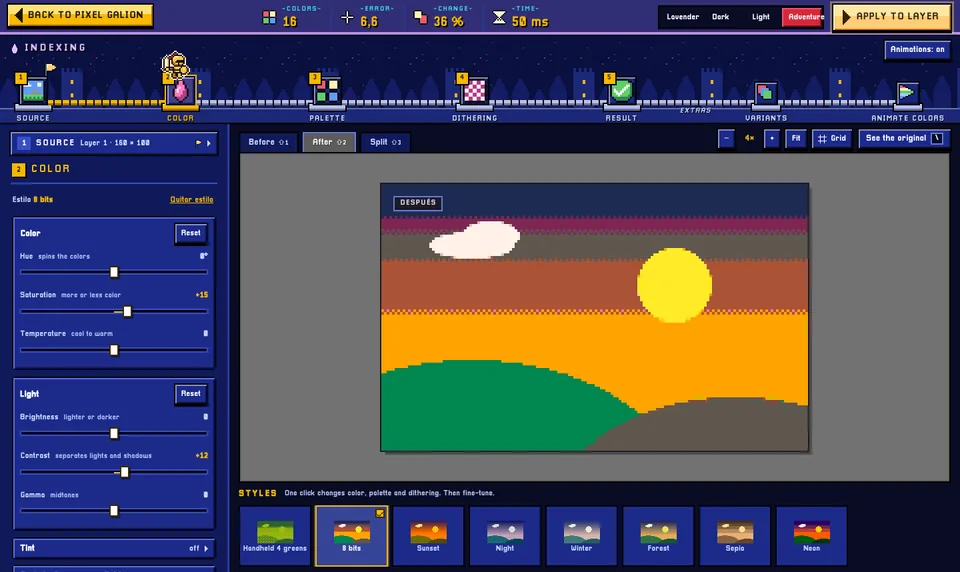
The 8 bits style applied: fewer colours and clear bands in the sky. - Fine-tune if needed: brightness and contrast in Color, how many colours in Palette and how much dithering in Dithering.
- Click Apply to layer. If you do not like it, Ctrl+Z undoes it in one step.
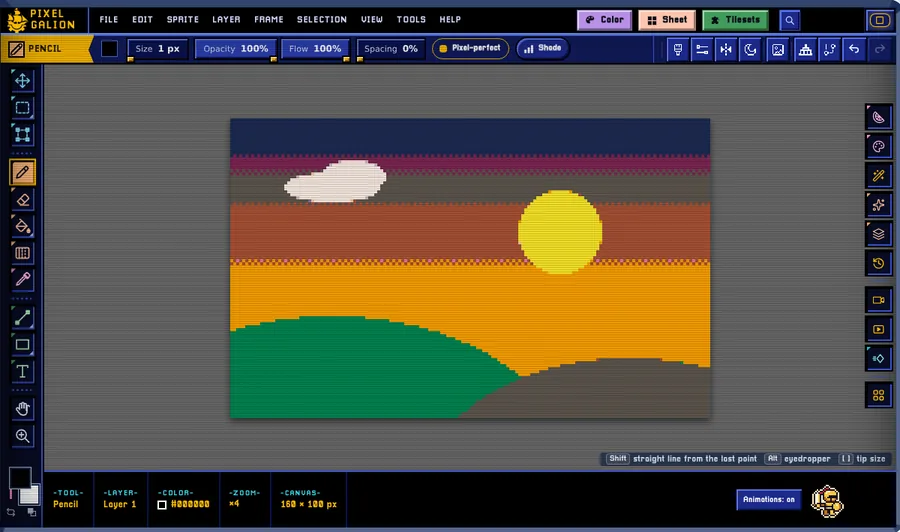
The result in the editor: you can now touch it up pixel by pixel with the pencil. - Export with File → Export animation… and raise the Scale (×4 or ×8) to share it, or with File → Quick export → Export PNG (frame) to keep its real size.
Which size to choose
The sprite size decides how much detail survives. Think about the final use before importing:
- 32 × 32 or 48 × 48: icons, items and small characters.
- 64 × 64: a portrait or a character with some detail.
- 160 × 90 or 320 × 180: 16:9 backgrounds and landscapes. If you choose something much bigger, Pixel Galion warns you and suggests 320 × 180.
If the original image has a different shape from the sprite, crop it first or accept a little margin. And if the subject is small in the photo, crop tightly: anything that only gets a few pixels turns into a blob.
Palette and dithering
Fewer colours give a more “pixel art” look. 8 or 16 colours are usually enough; in the Palette step you can choose how many or use one of the palettes in the list.
Dithering mixes two colours in a pixel pattern to suggest a third. In the Dithering step, the strength goes from 0% (clean bands) to 100% (full dithering). A little dithering suits skies and gradients; for characters and faces, use none.
Common problems
- It looks blurry. Keep Use nearest-neighbor (no smoothing) ticked when importing, and scale up with the export Scale, never with another program that smooths.
- Details get lost. The sprite is too small for what you want to show. Go one size up (from 32 to 48 or 64) or crop the image so the subject fills more of it.
- There is noise and stray dots. Lower the number of colours in Palette or the strength in Dithering.
- It looks tiny when shared. Export with Scale ×4 or ×8: each pixel becomes a crisp block.
Common questions
Is it free? Yes. Pixel Galion is part of GalionToon, which is free and will stay free. There is no account and no watermark.
Is my image uploaded anywhere? No. The conversion happens in your browser and the image never leaves your device.
Can I convert a photo of a person? Yes, but it looks better if you remove the background first, so the palette is spent on the person and not on what is behind. The guide How to remove the background from a photo or image for free shows how.
Can I animate it afterwards? Yes. The result is a normal Pixel Galion sprite: you can add frames as in How to make your first animated pixel art and export it as a sprite sheet.
More guides
- How to make your first animated pixel art3 min read
- How to create a sprite sheet for a video game4 min read
- How to remove the background from a photo or image for free5 min read
- How to make your first manga page in your browser6 min read
- How to make a vertical webtoon to read on a phone5 min read
- Speech balloons and speed lines for your comic5 min read
- Comic and manga page sizes: B5, A4, comic book and webtoon5 min read
- How to import your custom brushes4 min read
- How to edit a photo online for free, without signing up5 min read
- How to open and save a PSD file in your browser4 min read
- How to add subtitles to a video in your browser3 min read
- How to edit your first video in your browser4 min read
- How to make a YouTube thumbnail for free in your browser4 min read
- How to crop a photo into a circle for your profile picture4 min read
- How to put text on a photo so it can be read4 min read
- Layer masks: what they are and how to use them4 min read
- How to resize an image for social media without losing quality4 min read
- How to make an Instagram post step by step4 min read
- Free fonts for commercial designs: how to choose them5 min read
- How to animate a character with bones in Galion Rig4 min read
- How to convert a drawing or a logo into a vector (SVG)4 min read